AI Readiness Hub
NAVIGATION Left Navigation Menu > Workforce Management > Ticket Triage > AI Readiness Hub
NAVIGATION Left Navigation Menu > Admin > Admin Categories > Automation > Kaseya Intelligence > Ticket Triage tab > Visit AI Readiness Hub
PERMISSIONS Security level with Admin Feature Access > Kaseya Intelligence enabled, plus Service Desk administrative configuration permissions to edit Queues and Priorities.
The AI Readiness Hub is an automated data quality and configuration optimization tool embedded within Autotask. This feature enables service desk administrators to continuously evaluate entity descriptions (beginning with Queues and Priorities) and apply AI-generated improvements so that Kaseya Intelligence engines, such as Ticket Triage, can classify and route incoming service tickets with maximum accuracy.
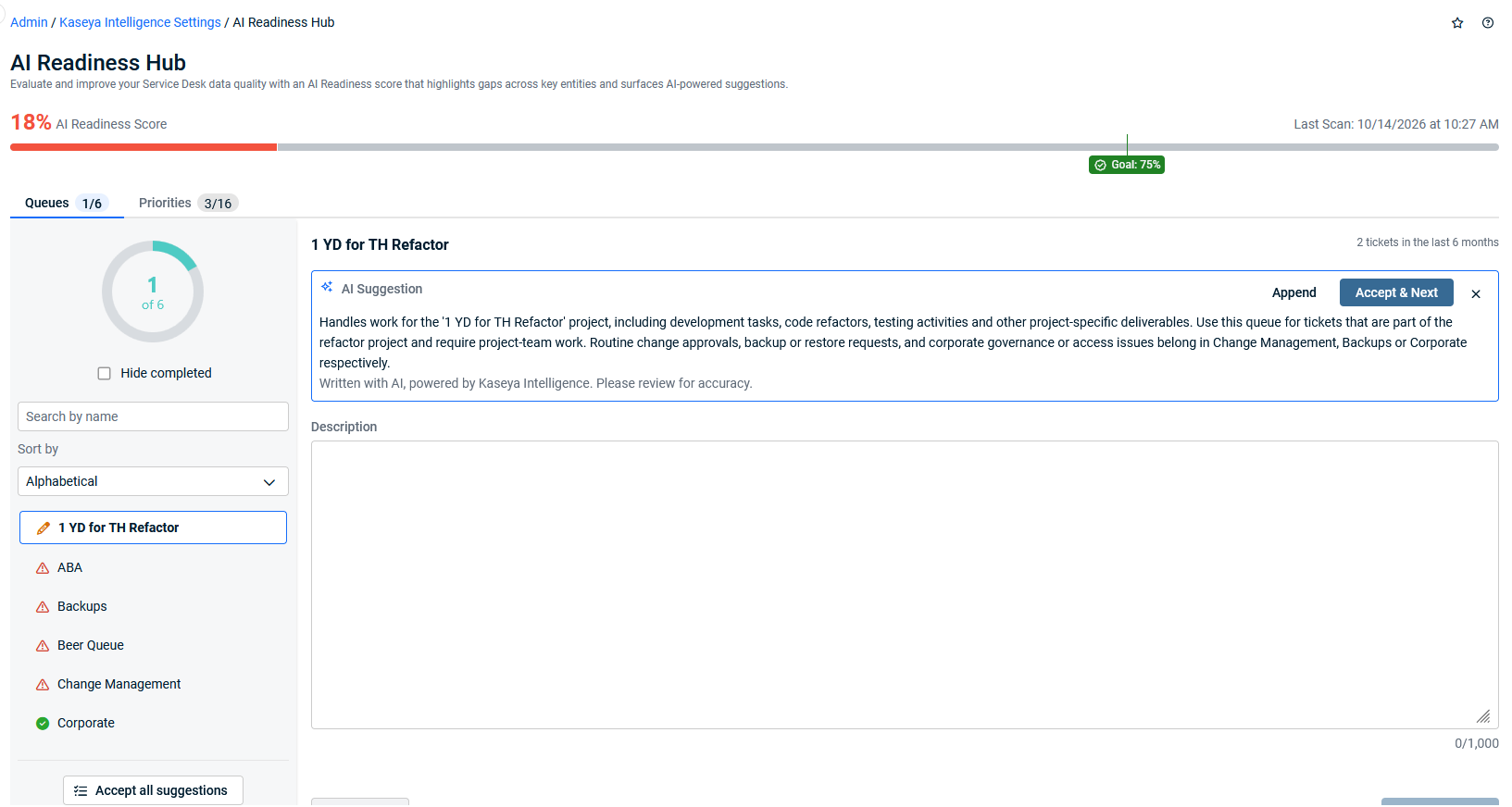
AI Readiness Hub page
The AI Readiness Hub provides a centralized overview of your configuration quality, displaying a live data maturity score and actionable entity-level recommendation queues.
Summary ribbon and maturity score
The top ribbon provides a live health check of your Autotask configuration data quality across all evaluated entities.
| UI Element | Description |
|---|---|
| Identity Block | Displays the feature title, the AI Specialist chip, and the Live assessment indicator. |
| Data Maturity Score Ring | A dynamic circular progress ring displaying your tenant's configuration maturity score from 0 to 100. The target benchmark for optimized automated triage is 75% or higher. |
| Status Badge | Categorizes overall configuration health into Good, Needs Improvement, or Bad based on the aggregate rubric scores of active entity descriptions. |
| Status Pills | Shows the total counts of evaluated entity descriptions that currently qualify as Good, Needs Improvement, or Bad. |
| Actions Block | Summarizes pending work (for example, "5 auto-fixes ready" and "2 items need review"). Includes quick-action controls such as Accept All Suggestions. |
Action Pane (Recommendation Review)
When selecting an item from the Queues or Priorities tabs, the Action Pane slides open to facilitate a focused, sequential human-in-the-loop review.
| Field / Control | Description |
|---|---|
| Entity Name & Context | Displays the name and parent category of the Queue or Priority currently under evaluation. |
| Current Description | Displays the existing text configured in Autotask. Flags descriptions that are blank, under 100 characters, or lack operational context. |
| AI Suggestion | Presents an AI-generated, structured replacement following ITIL best-practice formulas (e.g., Type of work > Inclusions > Explicit Exclusions for Queues; Impact > Scope > Urgency > Consequence for Priorities). |
| Confidence Rating | Calculated score representing the quality and certainty of the AI suggestion. Suggestions scoring ≥ 75% are designated as auto-fixable. |
| Guidance Box | Displays entity-specific best practices, including ideal description formulas, required elements, and anti-patterns to avoid. |
| Action Buttons | Allows administrators to Accept & Next, Save & Next (after editing inline), Generate with KI, Append, or Ignore. |
How to...
 Review and accept description recommendations
BEFORE YOU BEGIN Navigate to Admin > Kaseya Intelligence > AI Readiness and verify that your subscription tier includes automated AI suggestions (Ultimate, Kaseya 365 Ops, ITSM+, or Kaseya 365 ITSM).
To inspect and apply AI-recommended descriptions one item at a time, complete the following steps:
- Go to Admin > Kaseya Intelligence > AI Readiness.
- Select the Queues or Priorities tab.
- Click any row displaying a Needs Improvement or Bad badge to open the Action Pane.
- Review the Current Description alongside the AI Suggestion and guidance notes.
- Perform one of the following actions:
- Click Accept & Next to replace the current description with the AI suggestion and advance to the next item.
- Edit the suggested text directly in the box, then click Save & Next.
- Click Append to add the suggested text to the end of the existing description without overwriting it.
- Click Generate with KI to regenerate a new prompt suggestion.
- Click Ignore if you prefer to keep your existing configuration as-is.
The accepted description is saved to the entity in Autotask, an audit record is logged, and the Data Maturity Score ring updates reactively.
Accept all qualified suggestions in bulk
BEFORE YOU BEGIN Verify that auto-fixable suggestions are available (indicated by the "N auto-fixes ready" counter in the summary ribbon).
To bulk-apply high-confidence suggestions across an entire entity category, complete the following steps:
- Go to Admin > Kaseya Intelligence Settings > AI Readiness.
- Open either the Queues or Priorities tab.
- Click Accept All Suggestions located above the entity table.
- In the confirmation modal that appears, review the count of high-confidence descriptions (≥ 75% confidence) that will be updated.
- Click Confirm and Apply.
Autotask updates all eligible entity descriptions simultaneously, records the changes in the audit log, and recalculates your overall Data Maturity Score.
Run a manual scan (Essentials and Premium tiers)
BEFORE YOU BEGIN Applicable to subscriptions on Essentials, Premium, and standard ITSM packages.
To manually evaluate your configuration quality without an automated AI license, complete the following steps:
- Go to Admin > Kaseya Intelligence > AI Readiness.
- Click Scan Configuration.
- Review your generated Data Maturity Score and the list of flagged Queues and Priorities.
- Click into flagged items to review the specific gap criteria (such as missing scope, brevity, or lack of business consequences).
- Manually update your Queue and Priority descriptions under Admin > Features & Settings > Service Desk using the displayed rubric guidelines.
You can re-scan your configuration at any time without usage limits or per-scan metering fees.
FAQ
Does a low Data Maturity Score block my team from using Ticket Triage?
No. The AI Readiness Hub is strictly non-blocking.
You can activate and run Smart Ticket Triage regardless of your current score. However, maintaining a score of 75% or higher is strongly recommended to ensure the AI classification engine accurately interprets routing intent and avoids misclassifications.
Will the AI Readiness Hub overwrite my configuration without my permission?
No. All configuration updates require explicit administrator approval.
The tool operates strictly on a human-in-the-loop framework. No queue, priority, or field description is modified until an administrator clicks Accept & Next, Save & Next, or explicitly approves the Accept All Suggestions confirmation dialog.
How does the rubric evaluate description quality?
Descriptions are scored across Structure, Clarity, and Robustness.
The engine measures each description against standard ITIL and MSP operational formulas:
- Structure: Follows the required formula (Queues: Work Type > Inclusions > Explicit Exclusions; Priorities: Impact > Scope > Urgency > Consequence).
- Clarity: Unambiguous differentiation from sibling queues and priorities.
- Robustness: Minimum of 100 characters in length and provides meaningful operational context rather than simply repeating the entity name.
When are descriptions re-evaluated?
Evaluation is change-triggered in automated tiers.
For automated tiers (Ultimate, K365 Ops, ITSM+), the specialist automatically scans and updates scores whenever an administrator creates or edits an entity. There is no recurring scheduled background job or timer.
Why are only some of our Autotask queues listed in the AI Readiness Hub?
The AI Readiness Hub displays only active queues that are configured for Ticket Triage assignment eligibility.
To avoid clutter and focus your efforts on operational triage, queues not designated for ticket assignment in Ticket Triage settings are excluded from the hub. If no queues appear, check your Ticket Triage configuration to ensure assignment queues are selected.
What happens if I navigate away from the hub with unsaved changes?
Autotask displays an Unsaved Changes modal prompting you to Save & Continue, Discard, or Cancel.
While moving between tabs and items within the AI Readiness Hub, your edited descriptions are safely cached with an amber pencil icon. However, if you attempt to leave the page, refresh the browser, or close the tab, an alert displays: You have [x] items pending review. Are you sure you want to exit? Doing so will lose any unsaved data. You can click Save & continue to commit your staged changes, Discard changes to abandon them, or Cancel to remain on the page.
Are descriptor changes tracked in an audit log?
Yes. Every descriptor update is recorded with a timestamp, resource ID, old and new values, and change origin.
The audit logging system identifies the origin of each modification as: auto-applied by AI (accepted via bulk auto-apply), accepted by administrator (individual acceptance of an AI recommendation), or edited by administrator (manual text edit). This metadata supports troubleshooting and ensures complete administrative accountability.


